Deploy Neuron Anywhere, Including Air-Gapped
Where your engagement data lives isn’t a preference. For many teams it’s a contract term, a regulatory requirement or a security clearance.
Some organizations want Neuron in their own AWS account. Some want it on hardware in their own data center. Some need it on a network that has never touched the internet and never will.
Neuron is self-hosted by design, and it’s built to fit all three.
Offline Mode
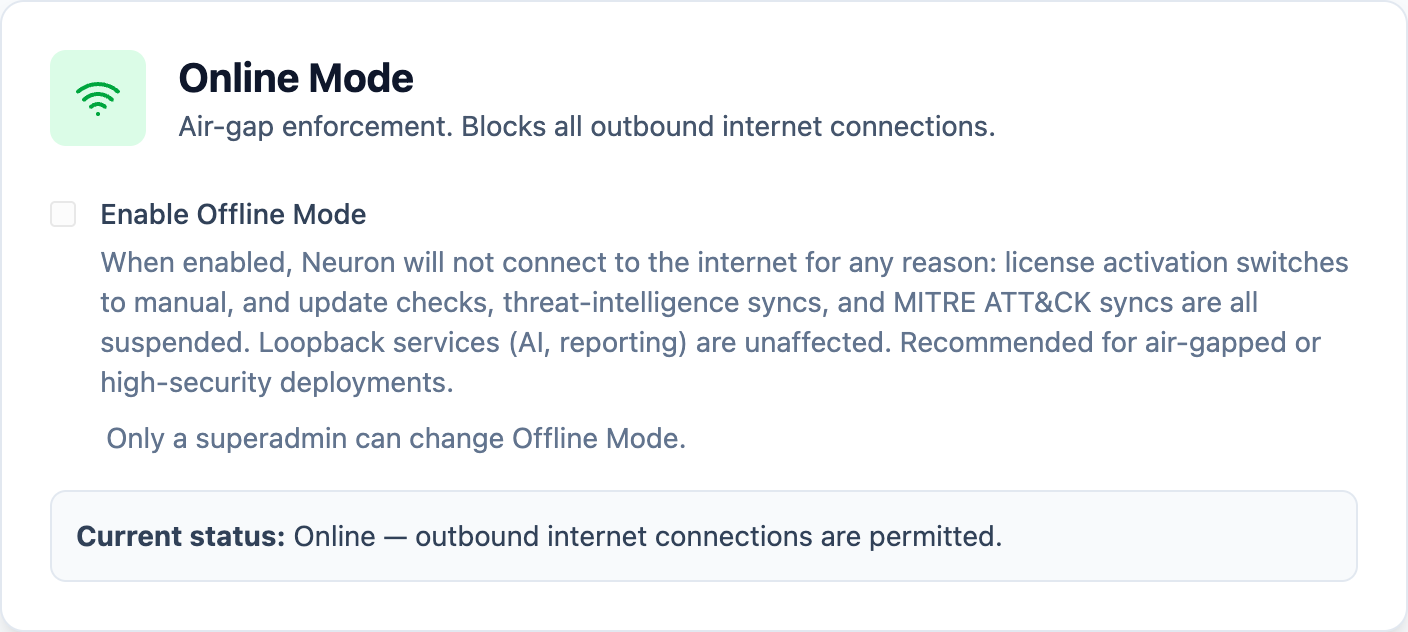
On an air-gapped network, “it mostly doesn’t call home” isn’t good enough. You need to know.
Offline Mode is a single setting that blocks every outbound internet connection Neuron would otherwise make. License activation switches to manual, and update checks, threat intelligence syncs and MITRE ATT&CK syncs are suspended. Neuron AI model downloads are disabled. Local services such as Neuron AI and the reporting engine keep working, because they never leave the server.
Only a superadmin can change it, and turning it off requires confirmation. Integrations that still need the network, such as email or SSO, are clearly flagged so nothing is left to assumption.
A Guided First Run
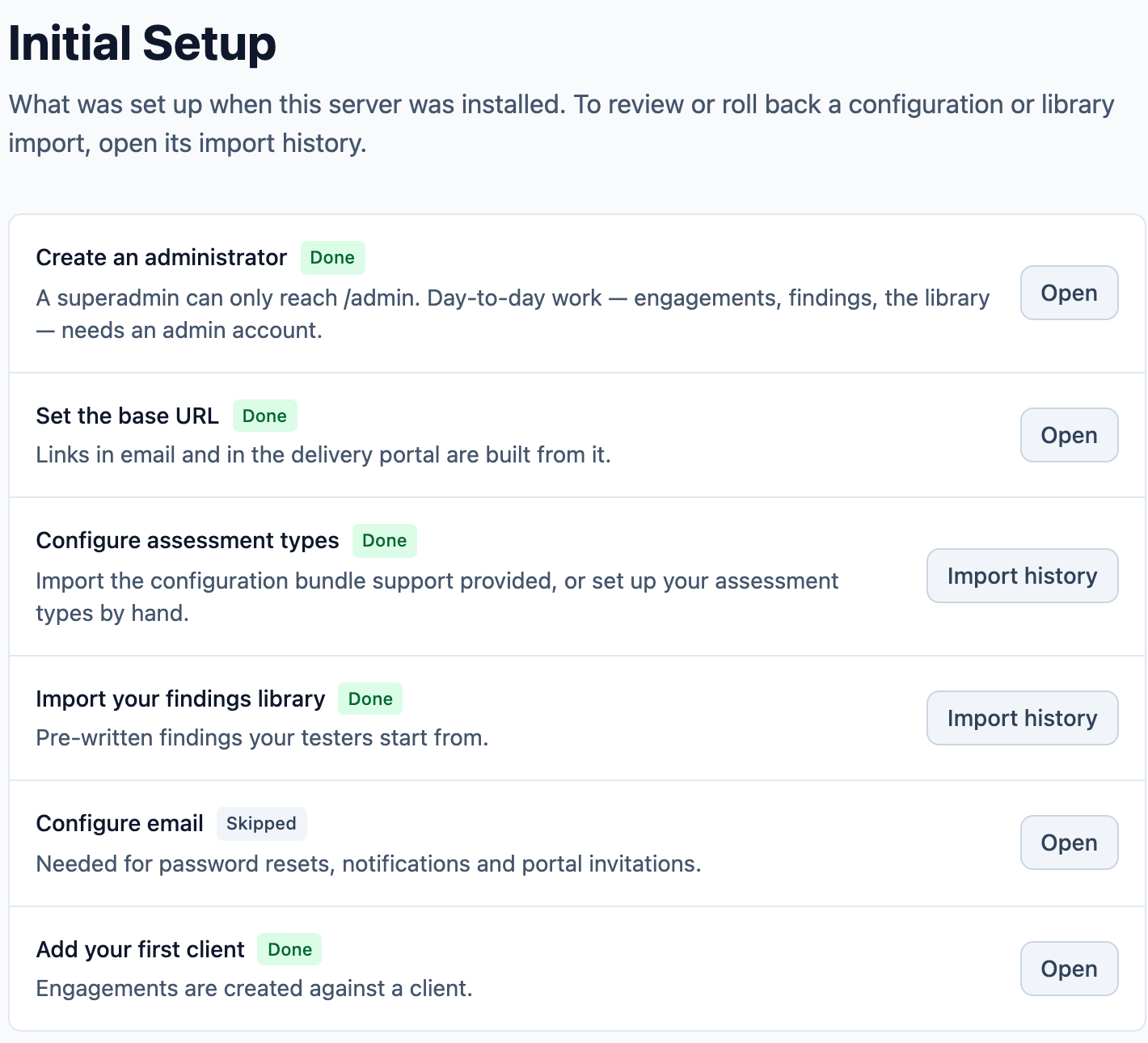
A fresh install shouldn’t leave you staring at an empty screen.
The welcome wizard walks a new server through six steps: create an administrator, set the server’s address, apply your configuration, import your findings library, configure email and add your first client. Skip anything you’d rather do later. The Initial Setup page keeps the checklist, showing what was done, what was skipped and where to finish it.
Neuron Core ships as a Linux binary for x64 and ARM64, with database migrations built in. Setup scripts handle the database, the nginx reverse proxy and scheduled backups, and the installer asks again when a step fails instead of leaving you to start over. A Trusted Proxies setting tells Neuron how many proxies sit in front of it, whether that’s nginx alone or a CDN and load balancer as well.
Your Cloud, Your Choice
We publish step-by-step deployment guides for AWS, Google Cloud, Microsoft Azure and Oracle Cloud, plus a guide to choosing between them and a dedicated air-gapped deployment guide. Use your cloud’s managed PostgreSQL or run your own.
License activation is built for both worlds. On a connected server, Neuron shows a short activation code; someone on your account enters it at my.neuron.ws, approves the server, and the license updates a few seconds later. On an air-gapped server, the same exchange happens by hand.
The Delivery Portal can run on its own host, separate from Neuron itself, so the part your clients reach can sit at the edge of your network while engagement data stays inside it. The portal binary checks its compatibility with Neuron and asks before updating.
Access That Fits Your Organization
Sign in with SAML 2.0 or OIDC, with Azure AD, Okta and Google Workspace among the supported providers. Require MFA for local accounts. Keep a superadmin as a break-glass account: local password only, administration only, and it doesn’t use a license seat.
What This Means for Your Team
You decide where Neuron runs, what it can reach and who can sign in. Whether that’s a cloud account you already manage or a network with no route to the outside world, the platform is the same.
If you’d like to talk through a deployment, visit https://neuron.ws/demo (opens in a new tab)
Thanks for reading,
The PenTest.WS Development Team

See Neuron on your terms.
Tell us about your team and environment. We will show you Neuron running the way you would run it: on your infrastructure, under your control.